
Datto RMM
Overview
This document will detail how to deploy Datto RMM with ImmyBot.
Prerequisites
- An active ImmyBot subscription or trial
- Admin access to Datto RMM
- Knowledge of creating and managing Deployments
Integration Capabilities
- Running scripts on the device
- Agent identification by adding an inventory script to be run against all of your endpoints
- Importing agents from linked clients into ImmyBot
- Mapping clients from the integration to tenants in ImmyBot
- Getting an install token for a specific client
About Running scripts through this integration
We utilize Datto RMM Quick Jobs to run scripts through this provider. This can cause an issue due to the ephemeral agent timing out before the connection can be made.
There is a small delay after adding an agent to Datto RMM where Quick Jobs will queue for some time while Datto RMM gets computer information from that agent. We recommend waiting at least 10 minutes before attempting to run ephemeral agents through this integration.
Due to this delay from Datto's QuickJobs, we don't recommend having the DattoRMM integration as the only agent to run scripts.
Process
Create a Datto RMM Security Group (Optional)
- Navigate to
Setup->Security Levels - Click
Create Security Level - Name it something obvious like ImmyBot API
- Add a description if you would like
- Expand
Permissions- Enable
Sites- Set
Sites,Devices, andManageto the Manage radial button - Set the rest of the options to View
- Set
- Enable
Jobs- Set
Active Jobsto Manage
- Set
- Enable
- Expand
Components- Set all of these to View
- Expand
Remote Control Tools- Disable Toggle All
Create the Datto RMM API User
Navigate to
Setup->Global Settings->Access Control.Turn on the Enable API Access toggle.

Navigate to
Setup->Users, and click the username that you would like to enable API access for.
Click Generate API Keys to generate an API Key and an API Secret Key for this user.
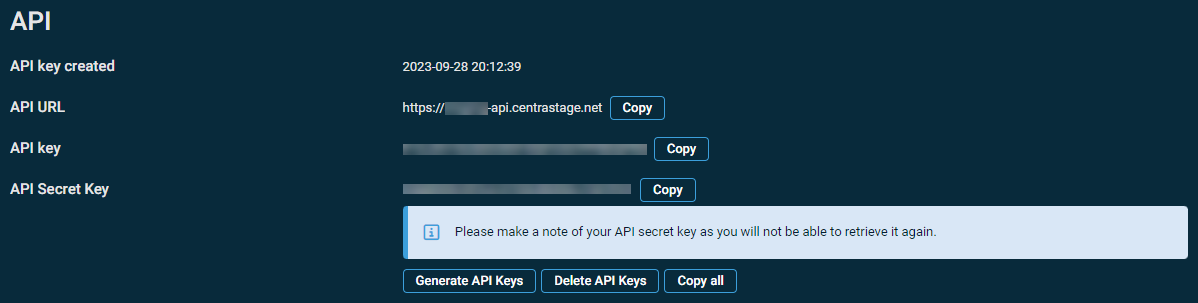
The API URL field is added to the individual user page once API keys have been generated for the user.
- The API Key and the API Secret Key will be displayed. Make a note of these and the API URL somewhere safe.
- Change the Security Group to the one you created. If you did not create one, set it to Administrator
Important
The API Secret Key will be hidden for security reasons after navigating away from this page. It will not be possible to retrieve it again. However, you can regenerate API keys at any time by returning to the page and clicking Generate API Keys. This will invalidate any keys previously generated. Similarly, clicking Delete API Keys will revoke access altogether. Regenerating and deleting API keys is irreversible, and you must confirm the action by clicking Confirm in the confirmation dialog box. 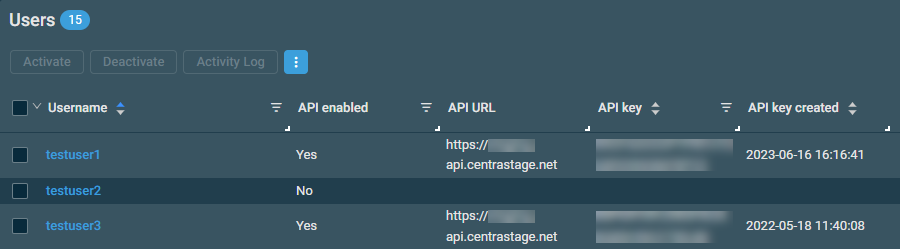
- Click Save User.
Add the Ad Hoc PowerShell Component
You need to add the Ad Hoc PowerShell component to your instance if you plan on running scripts from ImmyBot through DattoRMM.
- Navigate to
Automation->ComStore - Search for
Run Ad Hoc Command (PowerShell 2-5) [WIN] - Click Add on the right hand side of the item
- Click into the component and copy the UID
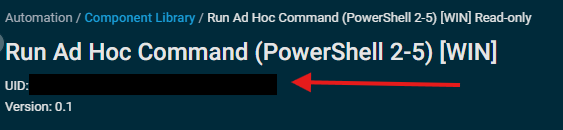
Set up the integration
- Navigate to
Show More->Integrations - Click on
Add Integration - Select
Datto RMM - Change the URL to your instance API URL.
- Update the APIKey, APISecret, and Component UID.
- Click Update
- Enable the integration
- Link your clients in the client tab
Set up the Deployment
- Click on
Deploymentsand then Click onNew - Select
Datto RMM - Integrationfrom the Software / Task drop down - Select the radial button labeled
Installedunder theSoftware should be - Select the
Latestradial button underDesired Version - Select the radial button labeled
RequiredunderTarget Enforcement - Select the radial button labeled
Cross TenantunderTarget Scope - Select the radial button labeled
All ComputerunderTarget Type - Select the radial button labeled
No FilterunderTarget Filter - Click on
Createto save your deployment.
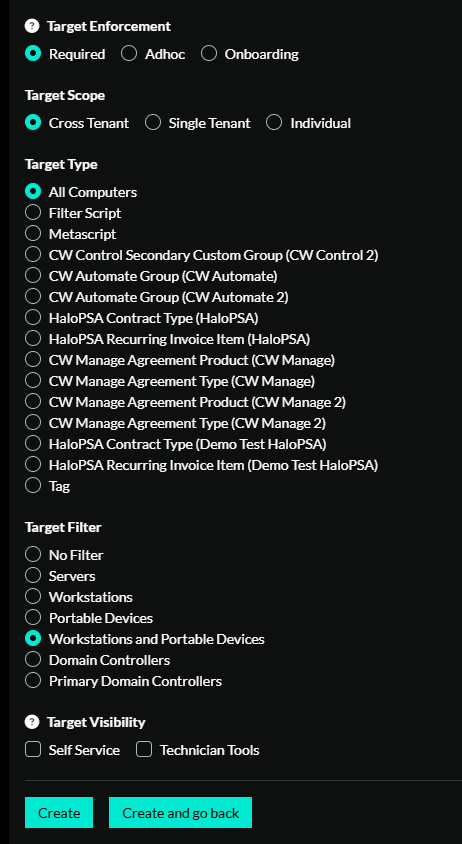
Now the next time a session is run against a targeted computer, Datto RMM will get installed.
Document information
Author: Mark Gomez
Date Published: 09/19/2025
Date Revised: 12/19/2025
Version Number: 1.0